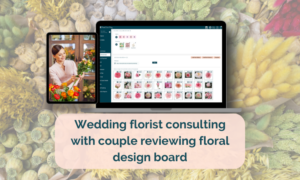
Florist product library software is the fastest path to consistent profits. With True Client Pro, you can store prices, images, vendors, and prep notes once, and use them everywhere. No more hunting for transparent images. No more guessing markups. Your library powers every recipe, proposal, and production report.
In this guide, you’ll learn why the Product Library is your profit engine, how to set it up step-by-step, and how to maintain it so every recipe you build is accurate, beautiful, and margin-positive.
Why Florist Product Library Software Matters
Busy doesn’t equal profitable. Florists lose money when:
- Costs aren’t current or markups are inconsistent.
- Images are missing, messy, or need background removal.
- Prep notes live in texts or notebooks, not the system.
- Substitutes aren’t pre-approved, causing last-minute chaos.
True Client Pro solves this with a single source of truth:
- Transparent-background images included for thousands of items.
- Markup by Category (e.g., Greens 250%) to standardize profit.
- Care & Prep fields so your team executes perfectly.
- Import TCP Product to bulk-add curated flowers, foliage, hardgoods, rentals, and more.
- Filters for Flowers, Foliage, Hardgoods, Rentals, Other to find items fast.
Result: Faster recipes, cleaner proposals, predictable margins.
Step-by-Step Guide: Build and Maintain Your Library
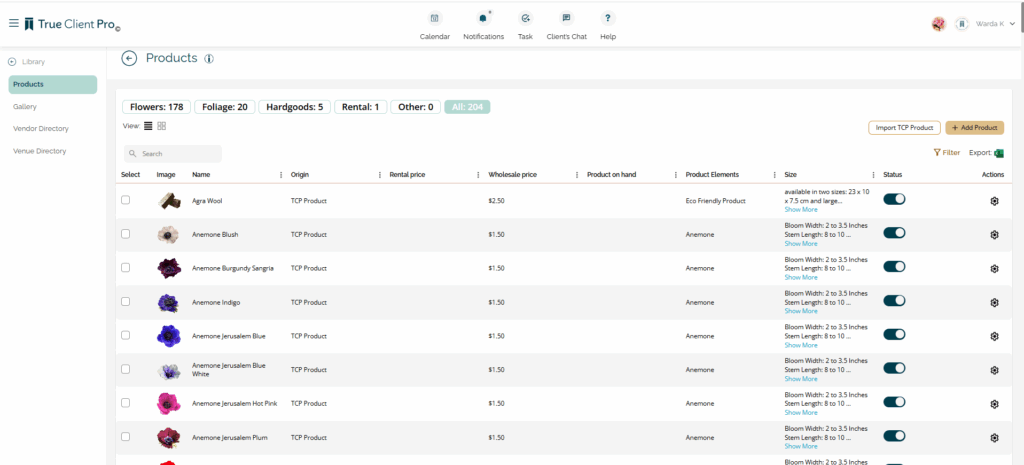
Step 1 — Start at Library → Products
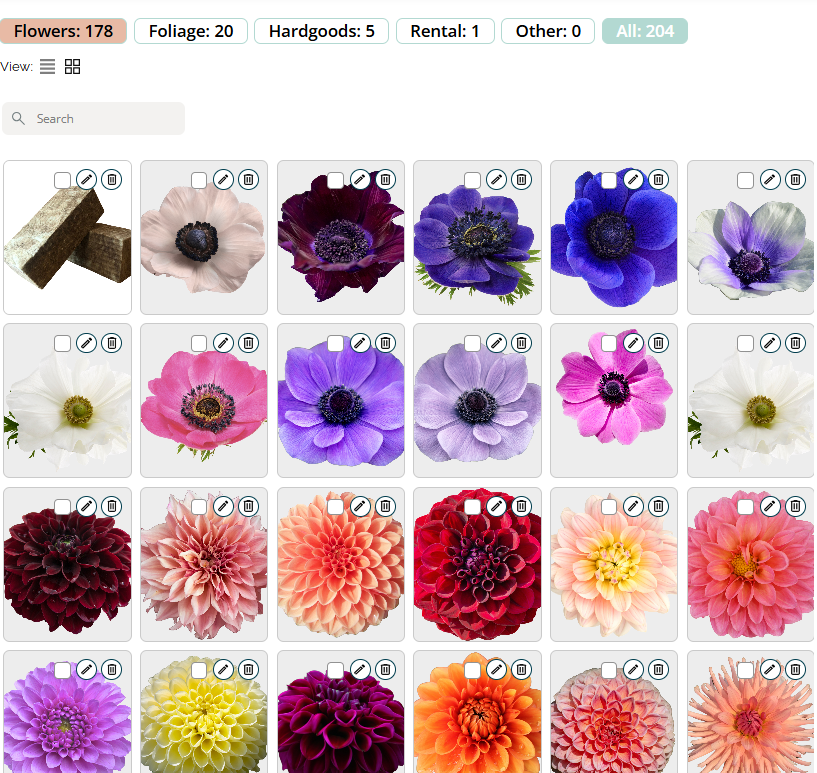
Use the top filters (Flowers, Foliage, Hardgoods, Rental, Other). View as Grid for data, or Image for creative planning.
Pro tip: The counter shows total items (e.g., “1310 items”). Keep an eye on growth and audit monthly.
Step 2 — Use Import TCP Product
Tap into True Client Pro’s master list. Search by Element, Color (e.g., “blush”), or Type. The system prevents duplicate imports, so you don’t crowd your library.
- Image View helps you browse by look.
- Grid View shows names and fields for quick QC.
- Import one or Select All, then click Import. You’ll see “Import started” and a success notice on the timeline.
Step 3 — Complete the Core Fields (Profit starts here)
From your “Update Product” screen, fill in these exact fields:
General Information
- Product Name (e.g., Garden Rose Ashley Pink)
- Botanical Name
- Product Element (Bloom, Green, Foliage, Fruit, etc.)
- Source (Flowers / Hardgoods / Rental)
- Markup (e.g., 350)
- External / Rental flags (toggle if applicable)
- Colors (use palette tags; display numbers keep hues grouped)
- Substitute Products (add up to 4)
Description
- Short, benefit-centric text your team understands at a glance.
Price Information
- Category (e.g., Bloom)
- Type (Flower, Hardgood, Rental)
- Unit of Measure (By Bunch, Per Item, By Stem)
- Stem per Bunch (e.g., 12)
- Bunch Price (e.g., 40)
- Wholesale Price (per-stem, e.g., 3.33)
Product Details
- Availability in Months (e.g., January, February, +10)
- Product on Hand
- Material (Bloom, Faux, Silk, etc.)
- Manufacturer/Distributor/Brand (e.g., Alexandra Farms)
- Shape (Radial, Round)
- Size (e.g., “Average Bloom Width: 1.5–2.5 in; Average Stem Length: 15–20 in”)
Care & Reporting
- Item Care (e.g., “Deliver 2–3 days prior; 5–6 day vase life.”)
- How to Prep (hydration, foliage removal, dethorning, warm water dip, etc.)
- When to prep
- Loading Instruction
- Restocking Instruction
Location & Prep Details
- Location of the inventory
- Quantity to prepare
- Prepped by / Pulled by
- Prepped item location
Fill these once. Every recipe and report inherits the data.
Step 4 — Add / Improve Images with Transparent Backgrounds
- Most TCP items include ready-to-use transparent images.
- If an item shows the “no image” icon, click it → Upload image → Save.
- Transparent backgrounds elevate proposals and recipe sheets instantly.
Bonus: Consistent imagery = brand consistency = higher close rates.
Step 5 — Set Substitutes Now (Avoid emergencies later)
Add up to 4 substitutes per item. Example: for “Astrantia Burgundy,” add similar varieties or nearby hues. When a flower is short, your team swaps confidently without derailing the design or the margin.
Step 6 — Manage Hardgoods vs Rentals
- Hardgoods: disposable items (candles, ribbon, foam).
- Keep wholesale up to date. Use markup rules (e.g., 2.5×).
- Rentals: arches, stands, compotes you bring back.
- Enter Wholesale and Rental Price.
- Rentals appear automatically on Strike-Down Reports when included in a recipe.
Step 7 — Control Profit with Category Markups
Under Customizable Fields → Product:
- Categories (e.g., Bloom, Greens): set standard markups (e.g., Greens 250%).
- Elements: 180+ elements provided with images; toggle visibility if unused.
- Color Palettes: add new colors rather than renaming existing ones to avoid retagging ripple effects.
- Vendors/Manufacturers: add your wholesalers and link products; your Flower Order Report then shows who to order from.
Warning: Don’t delete seeded system values; changes cascade. Add new values instead.
Step 8 — Use Filters to Design Faster
Design by Color, Material, Shape, or Element. Searching “blush” returns everything tagged blush. Move between Image and Grid view to switch from creative to operational mode instantly.
Advanced Tips Using Florist Product Library Software
- Standardize first, customize second. Lock category markups, then tweak per item when needed.
- Audit monthly. Review top movers, costs, and availability for seasonality.
- Tag faux vs fresh clearly. Use consistent prefixes (e.g., “FAUX-”) for clean reporting.
- Document prep nuances. Hydration time, dethorning, cooler timing—quality rises, waste falls.
- Use “Per Item” for fruit and accents. Apples, citrus, pods—profit leaks disappear when counted correctly.
- Keep colors tidy. Use display numbers to group families (pinks, blues, greens) for fast filtering and cohesive proposals.
- Train your team in the library. “If it’s not in the Product Library, it doesn’t go in a recipe.
Common Mistakes to Avoid
- Skipping Wholesale Price updates (fastest way to shrink margins).
- Uploading images with busy backgrounds (hurts proposal polish).
- Not using Substitutes (panic purchases kill profits).
- Over-adding categories/elements (clutter slows search).
- Editing existing Color Palette names (retags everything).
- Pricing Rentals as hardgoods (you’ll miss rental revenue).
Success Stories (Quick Wins)
- Proposal polish in minutes: A studio imported 60 garden roses, used the built-in transparent images, and sent upgraded proposals the same day—bookings jumped.
- Markup discipline: A shop set category markups (Bloom 3.5×, Greens 2.5×, Hardgoods 2.5×). Recipe margins stabilized event-to-event.
- Zero scramble substitutions: With 4 substitutes per bloom, design teams kept look and margin when supply shifted.
FAQs about Florist Product Library Software
1) How does florist product library software make recipes profitable?
It pulls accurate wholesale, markups, and units into every recipe—no manual math.
2) Do I still need to find images online?
Usually no. True Client Pro includes transparent-background images. Upload only when a niche item is missing.
3) Can I manage rentals and strike-down reports?
Yes. Mark items as Rental and they flow to the strike-down report when used in a recipe.
4) What if I forget a substitute?
Edit the product anytime and add up to 4 substitutes; recipes will reference them going forward.
5) Is there a recommended markup?
Common baselines: 3.5× blooms, 2.5× greens/hardgoods. Set yours by Category for consistency.
Conclusion and Call-to-Action
Your Product Library is your profit engine. When you complete the fields once, prices, images, vendors, care and substitutes, your recipes become fast, consistent, and reliably profitable. Proposals look premium. Production runs smoother. Clients feel the difference.
Want to simplify your floral business? Sign up for True Client Pro today!
Download our free Product Library Setup Checklist and get started now!
Read more: